Recommended Settings for the EF Mesh
These are the settings the EF Meshtastic community uses. They keep the network healthy when hundreds of folks pile into the Forest at once. Follow them and you'll be a good mesh citizen.
If you haven't done first-time setup yet
Start with How to Connect — it walks you through the whole 10-step flow. This page is the deeper dive for folks who want to understand why the settings are what they are.
The Forest Channel Bundle (Shared Openly)
Unlike some Meshtastic communities, the EF community shares its channel settings openly. Anyone with this QR can load the Forest channels onto their radio.
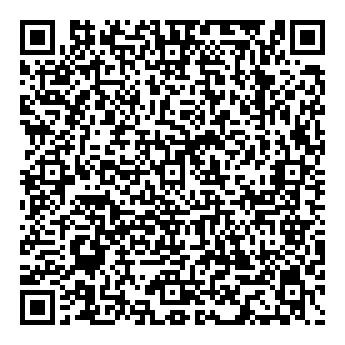
Or scan this from a second phone to bring it into the mesh.
This loads four channels on the Medium Range - Fast preset: the Meshtastic default primary channel (left unnamed — see the naming note below), a chgme-squad placeholder for your squad (you'll customize), the public forest-chat, and the Weather channel.
Channel Keys
These are the PSKs (pre-shared keys) for each EF Mesh channel. If you scanned the QR or tapped the link above, your device should already have these loaded — but you can verify them in Settings → Channels → [channel] → Encryption Key.
| Channel | Name | Key |
|---|---|---|
| 0 | (blank — Meshtastic default; see naming note) | AQ== |
| 1 | Your Squad | generate your own |
| 2 | forest-chat | oU03W9b8s0vpL0IjhBIIHZtuW/sHui3QDhmlaOLflkk= |
| 3 | Weather | Ww== |
These are channel PSKs, not device keys — they're already embedded in the public QR / Meshtastic share link above, so seeing them here doesn't reveal anything that isn't already shared with anyone who joins the mesh. The Squad channel is the one you keep unique to your crew.
LoRa Settings
| Setting | Value | Why |
|---|---|---|
| Region | United States |
Meshtastic uses 915 MHz in the US — required for legal operation |
| Preset | Medium Range - Fast |
Change this from the default. The Forest is a dense crowd — hundreds of nodes in close proximity. Medium Fast gives faster message delivery, lower latency for quick-coordination pings, and way less channel congestion than Long Fast. We trade a bit of range (which we don't really need at festival distances) for a much healthier network when everyone's piled into Sherwood. |
| Number of Hops | 3 |
Default. More hops = more network flood. Less = shorter reach. 3 is the sweet spot. |
| Frequency Slot | 0 |
Default. Everyone needs to be on the same slot. |
| Transmit Enabled | On |
Default. If this is off, you can't send anything. |
Channels
Channel 0 — Primary
| Setting | Value | Notes |
|---|---|---|
| Name | (leave blank) | This is the Meshtastic-wide default channel. Leave the name field empty — see the naming note below. |
| Key | AQ== |
Default Meshtastic key, leave as-is |
| Channel Role | Primary |
Don't change. (This is the channel role field, not the name — it's fine that it says "Primary" here.) |
| Position | Disabled |
Important — see note below |
| MQTT Uplink / Downlink | Disabled |
Don't change |
Encryption Key: AQ==
Leave the primary channel's NAME blank — don't type 'Primary'
Channels with different names will not see each other, even on the same key. The compatible primary is the one with a blank name (that's exactly what the EF QR loads).
With a blank name, each app auto-displays a label and they don't match: iOS shows "Primary channel", Android shows "MediumFast". Same blank/default channel, different label — they interoperate fine.
- ✅ Recommended: leave the name blank.
- ✅ If you must type a name, type exactly
MediumFast(no space, exact caps) — matches Android's label and stays compatible. - ❌ Do not type
PrimaryorPrimary Channel— those are just iOS's display label, not the channel name. Typing them gives the channel a real name that won't connect to the Forest mesh.
Why turn off position on Channel 0?
On Meshtastic firmware 2.7+, your radio shares your GPS position from whatever channel is first in the list. By disabling position on Channel 0 (the public default), your precise location only goes to your squad channel — not the world.
This only works on firmware 2.7 or later. Make sure you updated in Step 1.
Channel 1 — Your Squad
| Setting | Value | Notes |
|---|---|---|
| Name | (your squad name) | Customize in Step 8 |
| Key | (unique — tap blue lock to generate) | CRITICAL — tap the blue lock to generate a unique key. Don't skip this. |
| Channel Role | Secondary |
Don't change |
| Allow Position Requests | Enabled |
So your squad can ping your location |
| Precise Location | Enabled |
So squad pings give meters, not hundreds of meters |
| MQTT Uplink / Downlink | Disabled |
Don't change |
Channel 2 — forest-chat (public EF community)
| Setting | Value | Notes |
|---|---|---|
| Name | forest-chat |
Comes preset via the QR |
| Key | oU03W9b8s0vpL0IjhBIIHZtuW/sHui3QDhmlaOLflkk= |
Comes preset via the QR |
| Channel Role | Secondary |
Don't change |
| Allow Position Requests | Enabled |
Optional — enable if you want broader Forest folks to see your location |
| Precise Location | Enabled |
Optional |
| MQTT Uplink / Downlink | Disabled |
Don't change |
Encryption Key: oU03W9b8s0vpL0IjhBIIHZtuW/sHui3QDhmlaOLflkk=
Channel 3 — Weather
| Setting | Value | Notes |
|---|---|---|
| Name | Weather |
Comes preset via the QR |
| Key | Ww== |
Comes preset via the QR |
| Channel Role | Secondary |
Don't change |
| Allow Position Requests | Enabled |
Optional — enable if you want broader Forest folks to see your location |
| Precise Location | Enabled |
Optional |
| MQTT Uplink / Downlink | Disabled |
Don't change |
Encryption Key: Ww==
Posts the current weather every hour and a forecast at the beginning of every day. Major weather warnings go to the Primary channel.
Device
| Setting | Value | Why |
|---|---|---|
| Device Role | Client |
DO NOT CHANGE. Setting Router or Repeater without coordination breaks the mesh for everyone. |
| Rebroadcast Mode | ALL |
Default. Helps relay messages across the mesh. |
About Router and Repeater roles
Unless someone in the EF Discord has explicitly given you the green light, stick to Client. Mobile Router/Repeater nodes cause routing chaos, congest the network, and make everyone's experience worse — even (especially) yours. If you've got an awesome high-elevation node at your camp and think it'd benefit the community as a repeater, message the EF Discord first (not in the Discord? join at discord.gg/electricforest before tapping the link).
Position
For mobile radios (what you'll be wearing at Forest):
| Setting | Value |
|---|---|
| Broadcast Interval | 1 hour |
| Smart Position | ON |
| Smart Minimum Interval | 30 seconds |
| Smart Minimum Distance | 100 meters |
| Device GPS | Enabled |
| GPS Update Interval | 30 seconds |
| Position Flags | All OFF |
No built-in GPS?
If your radio doesn't have GPS (some don't), use your phone's GPS. In the Meshtastic app: App Settings → Phone GPS Sharing → Enabled, and set your phone's location permission for Meshtastic to Always.
Store & Forward
Leave this disabled. Always. On every node. Store & Forward floods the network with replays of old messages and is not appropriate for a festival mesh.
External Notifications (Quiet Your Radio)
Most radios make beeps and vibrations every time something happens on the mesh. At Forest with hundreds of nodes, this gets annoying fast. Turn these off:
- Alert GPIO buzzer when receiving a bell:
OFF - Alert GPIO vibra motor when receiving a bell:
OFF - Alert GPIO buzzer when receiving a message:
OFF - Alert GPIO vibra motor when receiving a message:
OFF
You can also turn off the new-node-discovery notification in your phone's notification settings.
MQTT (Skip This for Now)
MQTT lets nodes upload metadata to a shared cloud server. We don't have a dedicated EF MQTT bridge set up for 2026 yet, so leave MQTT disabled on every channel — uplink off, downlink off.
If we stand one up before the festival, we'll update this page and post in the EF Discord (not in the Discord? join at discord.gg/electricforest first).
Need Help?
The EF Meshtastic crew lives in the official Electric Forest Discord — we love walking new folks through settings.
Not in the Discord? Join at discord.gg/electricforest first.